

Unity 之 实现读取代码写进Word文档功能实现 -- 软著脚本生成工具
创始人
2025-05-29 00:15:04
Unity 之 实现读取代码写进Word文档功能
- 前言
- 一,实现步骤
- 1.1 逻辑梳理
- 1.2 用到工具
- 二,实现读写文件
- 2.1 读取目录相关
- 2.2 读写文件
- 三,编辑器拓展
- 3.1 编辑器拓展介绍
- 3.2 实现界面可视化
- 四,源码分享
- 4.1 工具目录
- 4.2 完整代码
前言
之所以有一篇这样的文章,是因为最进在申请软著时,要复制60页的代码到Word文档中,手动复制了一次,下一次就在也不想去复制了。记得之前好像看见过有人用Py写过这样的工具,但是Py我有不熟。就有了使用Unity写一个这样的工具的想法,一起来看看效果吧~
看看效果:
只需要选择想导出的脚本的根目录和保存Word文件的根目录(不选默认执行到工程的Asset目录);然后点击:"开始读取CS并写Word"即可:
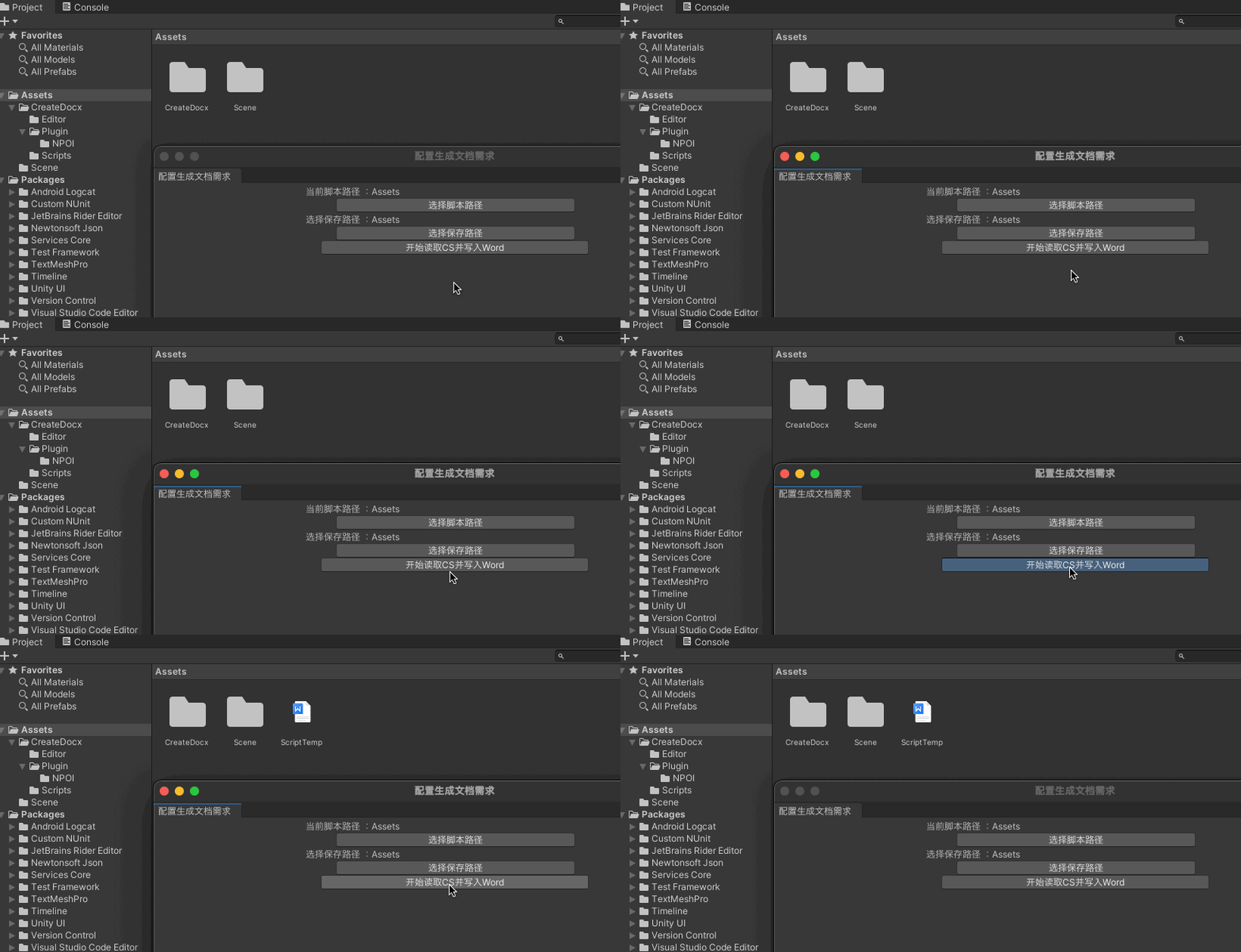
生成的脚本在WPS打开:

PS:生成的文档完全按照代码中的格式来处理的,没有剔除空格和注释。需要的童鞋可以自行拓展一下工具脚本。
一,实现步骤
1.1 逻辑梳理
基本思路
- 在文件夹中找到要复制的Csharp脚本
- 读取Csharp脚本
- 保存读取到的内容到Word文档中
知识点
- 遍历文件夹,根据后缀找到指定文件
- 读取文件中的数据
- 将读取到的数据保存到文档中
- 编辑器拓展 - 分装成工具
1.2 用到工具
用到的是NPOI库:
- NPOI是指构建在POI 3.x版本之上的一个程序,NPOI可以在没有安装Office的情况下对Word或Excel文档进行读写操作。
- NPOI是一个开源的C#读写Excel、WORD等微软OLE2组件文档的项目。
工程目录:

PS:需要插件的同学,可以到文末工具资源包中获取。
二,实现读写文件
这里只对用的逻辑进行讲解,若需要全面学习文件的读取相关,可以看我之前写过的博文:
- 本地数据交互 – 文件概述 – File类介绍和使用
- 本地数据交互 – 文件相关类介绍 – 读写txt文本文件
2.1 读取目录相关
- 判断是否存在目录文件
private static string filePath = "Assets/ScriptTemp.docx";
// 检查目录是否存在
if (Directory.Exists(filePath))
{// 存在就删除Directory.Delete(filePath);
}
- 创建指定文件
private static string filePath = "Assets/ScriptTemp.docx";
FileStream fs = new FileStream(savePath + filePath, FileMode.Create);
- 遍历文件夹并筛选.cs后缀文件
///
/// 递归文件夹下的cs文件
///
///
static void FileName(string folderPath)
{DirectoryInfo info = new DirectoryInfo(folderPath);foreach (DirectoryInfo item in info.GetDirectories()){FileName(item.FullName);}foreach (FileInfo item in info.GetFiles()){// 找到文件夹下的脚本if (item.FullName.EndsWith(".cs", StringComparison.Ordinal)){//将目录缓存下来,之后读文件的时候用//csScriptFullName.Add("Assets" + item.FullName.Replace(Application.dataPath, ""));}}
}
2.2 读写文件
- 读取文件内容
这里不适用ReadToEnd方法是因为,我发现在后续写入的时候会不会自动换行。所以使用循环的方式一行一行的读取文件内容。
// 读取脚本内容
StreamReader streamReader = new StreamReader(itemPath, Encoding.UTF8);
// 不适用
//string res = streamReader.ReadToEnd();
string res = "";
while (!streamReader.EndOfStream)
{res = streamReader.ReadLine() + "\n";//Debug.Log($"读取脚本内容: {res}");
}
// 释放资源
streamReader.Dispose();
- 写入Word文件
引用命名空间,没有的话就是没有导入1.2说的.dll文件,在到文末工具包中下载:
using NPOI.XWPF.UserModel;
写入Word步骤:创建文档 —> 创建段落 —>设置格式 —> 写入内容 —> 生成文档
XWPFDocument doc = new XWPFDocument();
// 新建段落
XWPFParagraph paragraph = doc.CreateParagraph();
// 左对齐
paragraph.Alignment = ParagraphAlignment.LEFT;
// 新建运行行
XWPFRun run = paragraph.CreateRun();
// 设置颜色
run.SetColor("000000");
// 字体
run.FontFamily = "宋体";
// 字号
run.FontSize = 10;
// 设置内容
run.SetText("内容内容内容");// 写入文档
FileStream fs = new FileStream("文件目录", FileMode.OpenOrCreate);
// 写入
doc.Write(fs);
// 释放资源
fs.Close();
fs.Dispose();
三,编辑器拓展
3.1 编辑器拓展介绍
- MenuItem
使用MenuItem标识可以为编辑器添加新的菜单。点击后执行一些特定的逻辑,没有额外的操作界面。只有静态方法可以使用该标识,该标识可以把静态方法转换为菜单命令。
比如:
[MenuItem("Tools/生成Word")]
public static void CreateWindow()
{Debug.Log("todo... 点了按钮");
}
- EditorWindow
继承自EditorWindow的类,可以实现更复杂的编辑器窗口功能。且这种窗口是可以自由内嵌到Unity编辑器内,共同组成编辑器的Layout。
通过在OnGUI()函数内调用GUILayout、EditorGUILayout、GUI等类的一些方法来实现复杂的界面。
下面是结果常用Layout 示例代码:
private void OnGUI()
{// 接受用户输入float size = EditorGUILayout.FloatField("输入size:", size);EditorGUILayout.LabelField("提示信息 :");// 添加空行EditorGUILayout.Space();if (GUILayout.Button("点击按钮")){pathRoot = EditorUtility.OpenFolderPanel("路径选择", pathRoot, "");}
}
3.2 实现界面可视化
- 创建脚本引用Editor命名空间,继承EditorWindow
- 新建OnGUI方法实现,可视化界面
using System.Collections;
using System.Collections.Generic;
using UnityEditor;
using UnityEngine;public class TestEditor : EditorWindow
{/// /// 读取根目录/// private static string pathRoot = "Assets";private static float size;[MenuItem("Tools/Test111")]public static void CreateWindow(){TestEditor window = GetWindow(false, "测试调试窗口", true);window.Show();}// 显示窗口private void OnGUI(){EditorGUILayout.LabelField("提示信息 :");size = EditorGUILayout.FloatField("输入size:", size);// 换行EditorGUILayout.Space();EditorGUILayout.LabelField("换行后的提示信息 :");EditorGUILayout.Space();// 按钮if (GUILayout.Button("选择脚本路径")){pathRoot = EditorUtility.OpenFolderPanel("路径选择", pathRoot, "");}}
}


四,源码分享
4.1 工具目录
打包后的工具目录:
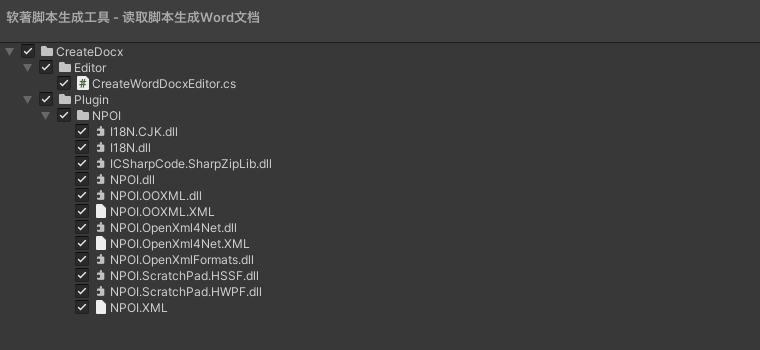
工程下载:源码和步骤都在上面分享过了,若还有什么不明白的,可以 点击链接下载 ,积分不够的童鞋关注下方卡片,回复:“Word” 或者 “软著脚本工具” 即可获得Demo源码~
4.2 完整代码
using System.Collections;
using System.Collections.Generic;
using UnityEngine;
using UnityEditor;
using System.IO;
using System;
using NPOI.XWPF.UserModel;
using System.Text;
using Debug = UnityEngine.Debug;public class CreateWordDocxEditor : EditorWindow
{/// /// 读取根目录/// private static string pathRoot = "Assets";/// /// 保存根目录/// private static string savePath = "Assets";// 文件名称private static string filePath = "/ScriptTemp.docx";[MenuItem("Tools/生成Word")]public static void CreateWindow(){CreateWordDocxEditor window = GetWindow(false, "配置生成文档需求", true);window.Show();}// 显示窗口private void OnGUI(){EditorGUILayout.BeginHorizontal();EditorGUILayout.Space();EditorGUILayout.LabelField("当前脚本路径 :" + pathRoot);EditorGUILayout.Space();EditorGUILayout.EndHorizontal();EditorGUILayout.BeginHorizontal();EditorGUILayout.Space();if (GUILayout.Button("选择脚本路径")){pathRoot = EditorUtility.OpenFolderPanel("路径选择", pathRoot, "");Debug.Log("选择脚本路径 : " + pathRoot);}EditorGUILayout.Space();EditorGUILayout.EndHorizontal();EditorGUILayout.BeginHorizontal();EditorGUILayout.Space();EditorGUILayout.LabelField("选择保存路径 :" + savePath);EditorGUILayout.Space();EditorGUILayout.EndHorizontal();EditorGUILayout.BeginHorizontal();EditorGUILayout.Space();if (GUILayout.Button("选择保存路径")){savePath = EditorUtility.OpenFolderPanel("路径选择", savePath, "");Debug.Log("选择保存路径 : " + savePath);}EditorGUILayout.Space();EditorGUILayout.EndHorizontal();EditorGUILayout.BeginHorizontal();EditorGUILayout.Space();if (GUILayout.Button("开始读取CS并写入Word")){CreateWordDocxFile();}EditorGUILayout.Space();EditorGUILayout.EndHorizontal();}static void CreateWordDocxFile(){Debug.Log("打包开始执行");csScriptFullName.Clear();FileName(pathRoot);CreatOrOpenDoc();EditorUtility.ClearProgressBar();AssetDatabase.Refresh();Debug.Log("打包执行结束");}/// /// 暂存遍历到的CS脚本全路径/// static List csScriptFullName = new List();/// /// 创建或打开文档/// /// private static void CreatOrOpenDoc(){try{// 检查目录是否存在if (Directory.Exists(savePath + filePath)){// 存在就删除Directory.Delete(savePath + filePath);}FileStream fs = new FileStream(savePath + filePath, FileMode.OpenOrCreate);XWPFDocument doc = new XWPFDocument();int index = 0;foreach (var itemPath in csScriptFullName){//Debug.Log($"csScriptFullName[i]: {item}");// 读取脚本内容StreamReader streamReader = new StreamReader(itemPath, Encoding.UTF8);//string res = streamReader.ReadToEnd();string res = "";while (!streamReader.EndOfStream){res = streamReader.ReadLine() + "\n";Debug.Log($"读取脚本内容: {res}");// 新建段落 设置格式XWPFParagraph paragraph = doc.CreateParagraph();paragraph.Alignment = ParagraphAlignment.LEFT;XWPFRun run = paragraph.CreateRun();run.SetColor("000000");run.FontFamily = "宋体";run.FontSize = 10;run.SetText(res);}// 释放资源streamReader.Dispose();EditorUtility.DisplayProgressBar("处理中...", "正在处理:" + itemPath,index * 1.0f / csScriptFullName.Count);index++;Debug.Log($"文件生成完成:{savePath} {filePath} ");}try{doc.Write(fs);}catch (Exception e){Debug.LogError($"文件不可写入,请查看原因:{e}");}fs.Close();fs.Dispose();}catch (Exception e){Debug.LogError($"创建失败,同名文件被打开!问题:{e}");}Debug.Log($"文件生成在: {savePath + filePath}");}/// /// 递归文件夹下的cs文件/// /// static void FileName(string folderPath){DirectoryInfo info = new DirectoryInfo(folderPath);foreach (DirectoryInfo item in info.GetDirectories()){FileName(item.FullName);}foreach (FileInfo item in info.GetFiles()){// 找到文件夹下的脚本if (item.FullName.EndsWith(".cs", StringComparison.Ordinal)){csScriptFullName.Add("Assets" + item.FullName.Replace(Application.dataPath, ""));}}}
}
相关内容
热门资讯
预订火爆!虎门人的年夜饭,真香...
快过年了 大家的年夜饭菜单定好了吗 你最心水的团圆滋味 又是哪一道呢 春节将至,虎门各酒楼匠心备宴,...
六载破局 三千立势|牛肉汉堡标...
六载耕耘,初心如磐。如今牛约堡已迎来全国签约门店突破3000大关的里程碑,从七年前一家不足20平米的...
贵州人年夜饭桌上C位菜之争
贵州人的年夜饭桌上, 哪道菜是你心里的绝对 “C 位”? 除夕年夜饭 是中国人一年中最有仪式感的一餐...
上海社区食堂大厨手把手教你解锁...
食材新鲜、定位平价、锅气十足,更是居民的食品卖场、老字号小吃店、面包店、咖啡店……上海基本每个社区都...
买肉干、捞鱼生、抢头香…原来新...
在新加坡这个多元化国家,华人占比超过70%,农历新年自然也是一年中最重要的节日之一。 张灯结彩、贴春...